IFC Settings in BIM (Industry Foundation Classes Settings)
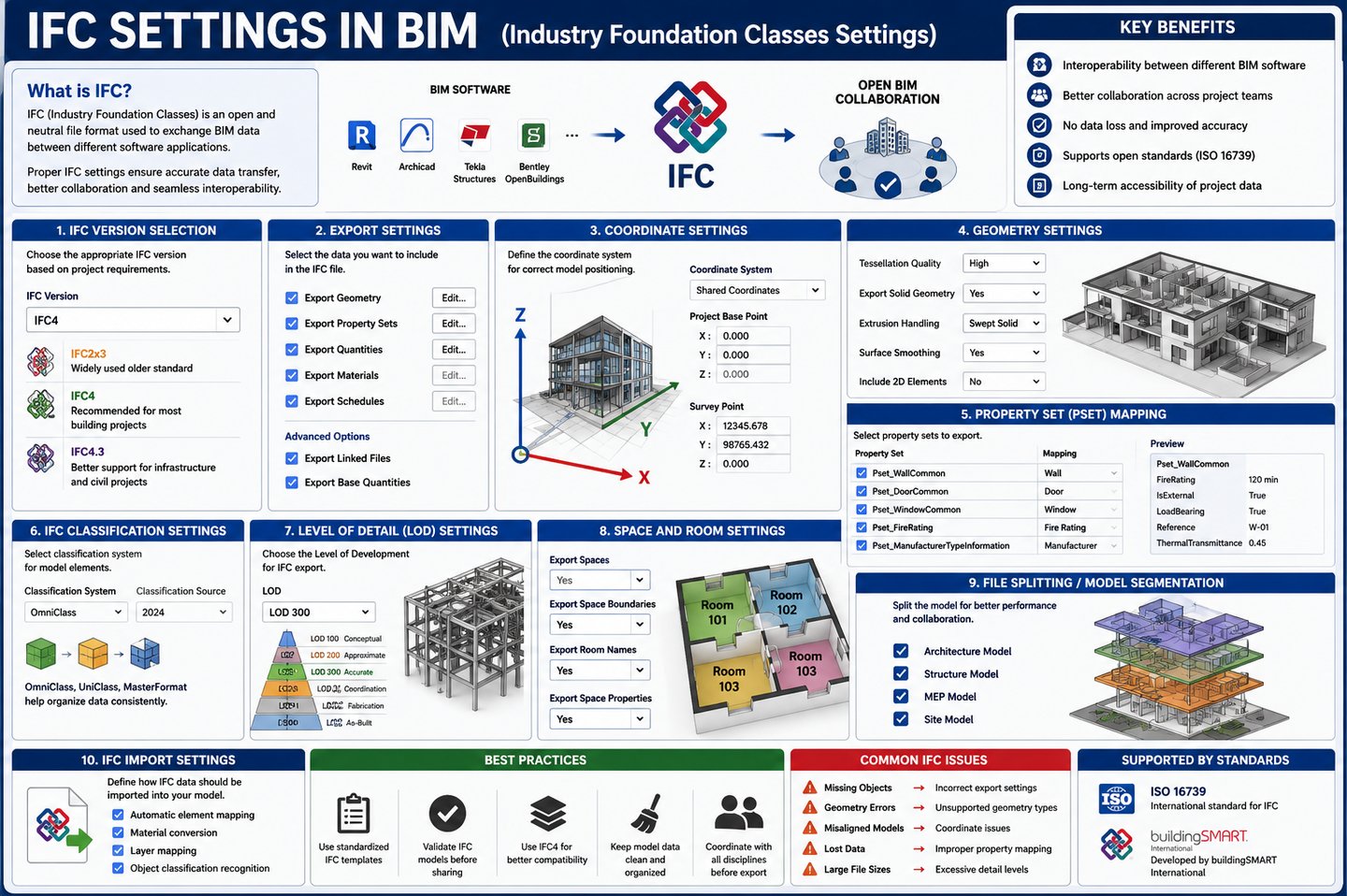
IFC settings in BIM control how a BIM model is exported, imported, and shared between different software platforms. Proper IFC settings ensure that building data is transferred accurately without losing geometry, materials, or project information.
2/10/20252 min read
Why IFC Settings Are Important
Correct IFC settings help:
Improve interoperability between BIM software
Prevent data loss
Maintain model accuracy
Ensure proper collaboration
Support BIM standards like ISO 19650
Common IFC Settings in BIM Software
1. IFC Version Selection
Different IFC versions support different features.
IFC VersionPurposeIFC2x3Widely used older standardIFC4Improved geometry and data supportIFC4.3Infrastructure and civil projects
Recommended
Use IFC4 for modern BIM workflows.
Use IFC2x3 only if required by project standards.
2. Export Settings
These settings define what information is included in the IFC file.
Typical Export Options
Export geometry
Export property sets
Export quantities
Export materials
Export schedules
Export linked files
Best Practice
Always enable:
Property Sets (Psets)
Base Quantities
Element Properties
3. Coordinate Settings
Correct coordinates ensure proper model positioning.
Common Coordinate Options
SettingPurposeShared CoordinatesAligns models between disciplinesProject Base PointDefines local project originSurvey PointReal-world geographic location
Important
Incorrect coordinates may cause:
Misaligned models
Clash detection issues
Positioning errors
4. Geometry Settings
Geometry settings control how building elements are exported.
Options Include
Tessellation quality
Solid geometry export
Extrusion handling
Surface smoothing
Recommended
Use high-quality geometry only when necessary because larger files may slow performance.
5. Property Set (Pset) Mapping
Psets store metadata about BIM objects.
Examples:
Material data
Fire ratings
Manufacturer details
Asset information
Best Practice
Use standardized property sets for consistency.
6. IFC Classification Settings
Classification systems organize BIM elements properly.
Popular systems include:
OmniClass
UniClass
MasterFormat
These help maintain standardized BIM data structures.
7. Level of Detail / Development Settings
IFC export settings may include:
LOD 100–500 filtering
Simplified geometry options
Construction detail levels
Recommendation
Match IFC detail level to project requirements.
8. Space and Room Export Settings
These settings manage:
Room boundaries
Areas
Space naming
Facility management data
Essential for:
Energy analysis
Facility operations
COBie workflows
9. File Splitting and Model Segmentation
Large BIM models may be split into:
Architecture
Structure
MEP
Site models
This improves performance and coordination.
10. IFC Import Settings
When importing IFC files, software may allow:
Automatic element mapping
Material conversion
Layer mapping
Object classification recognition
Proper import settings reduce translation errors.
IFC Settings in Popular BIM Software
SoftwareIFC SupportAutodesk RevitIFC export/import customizationArchiCADStrong open BIM supportTekla StructuresDetailed structural IFC workflowsSolibriIFC model checkingNavisworksIFC coordination and clash detection
Best Practices for IFC Settings
Use Standardized Templates
Create company IFC templates for consistency.
Test Before Final Export
Always validate IFC models before sharing.
Use IFC4 When Possible
Provides better interoperability and modern support.
Maintain Clean Model Data
Remove unnecessary objects and duplicate elements.
Coordinate Across Teams
Ensure all disciplines use aligned settings.
Common IFC Problems
ProblemCauseMissing ObjectsIncorrect export settingsGeometry ErrorsUnsupported geometry typesMisaligned ModelsCoordinate issuesLost DataImproper property mappingLarge File SizesExcessive detail levels